How to connect Spotify to Discord
Link Spotify to Discord to show what you’re playing and listen along with friends: the steps on desktop and phone, what needs Premium, and what to check when your song isn’t showing.
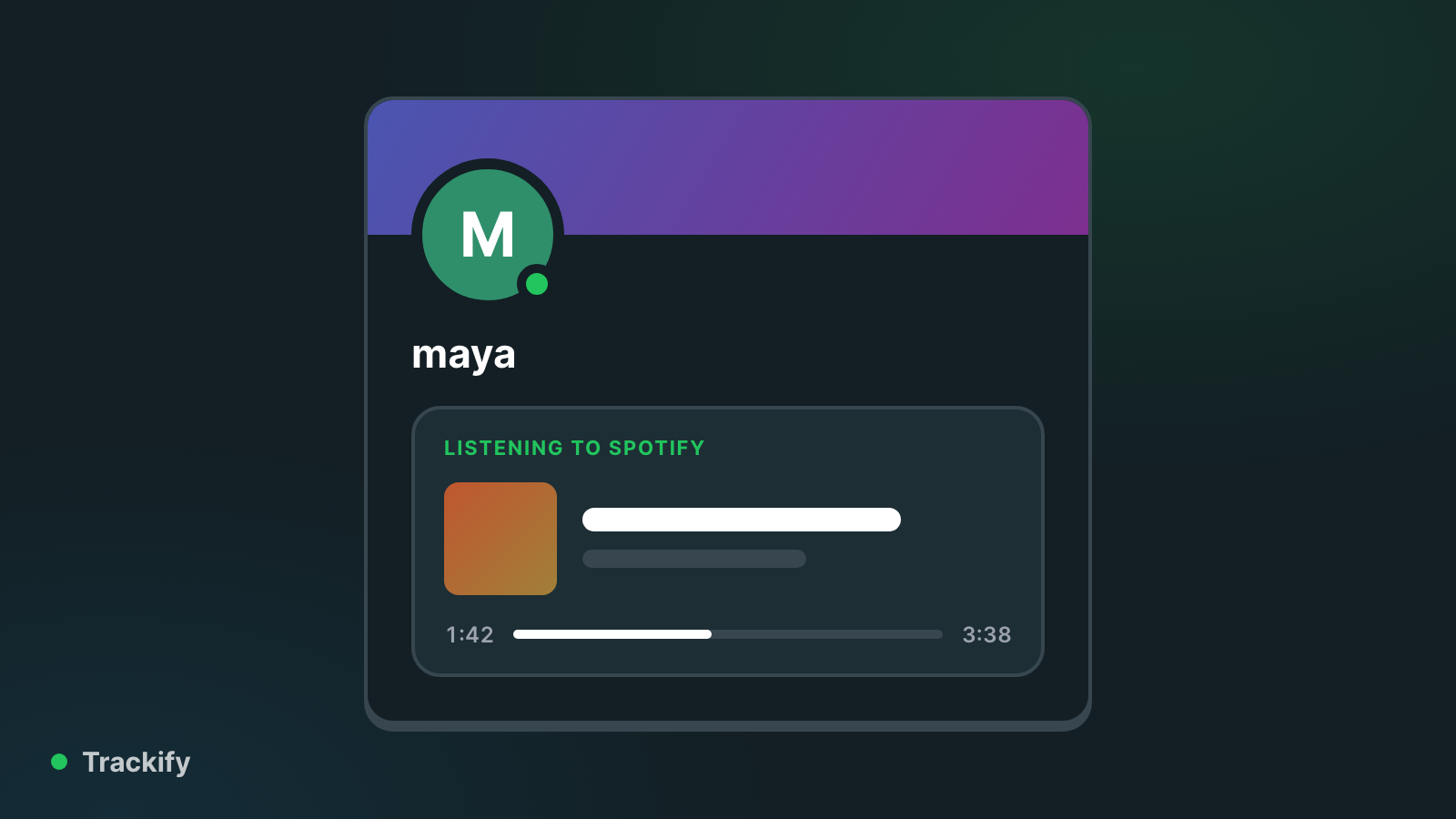
Linking Spotify to Discord shows the song you're playing on your Discord profile, and lets friends listen along with you. It takes about a minute.
Connect on desktop
- Open Discord and click the gear icon next to your name to open User Settings.
- Choose Connections.
- Click the Spotify icon.
- A browser tab opens. Log in to Spotify and agree to the connection.
Connect on your phone
- Open Discord and tap your avatar in the bottom right.
- Tap the gear icon, then Connections.
- Tap Add and pick Spotify.
- Log in to Spotify and agree to the connection.
Choose what people see
Once it's linked, the Spotify entry under Connections has two switches:
- Display on profile puts a Spotify link on your Discord profile.
- Display Spotify as your status shows "Listening to Spotify" with the song, artist and a progress bar whenever you're playing something.
Turn the second one off if you'd rather keep your listening to yourself. A private session in Spotify also hides it for a while.
Listen along with a friend
Click a friend who is showing "Listening to Spotify" and press Listen Along. Your Spotify starts playing the same song at the same point and follows them from track to track. You can also invite people: click the + next to the message box and choose Invite to listen to Spotify.
Two limits worth knowing:
- Listen Along needs Spotify Premium. A free account can show its status but can't join.
- It doesn't work while you're in a voice call, and Spotify pauses your music if your microphone has been picking you up for around 30 seconds.
If your song isn't showing
- Check Display Spotify as your status is on, and that you haven't set your Discord status to Invisible.
- Make sure Spotify isn't in a private session.
- If you have a game running, Discord may show the game instead.
- Still nothing? Disconnect Spotify under Connections and connect it again. That fixes most cases, especially after changing your Spotify password.
Disconnect Spotify from Discord
Go to User Settings → Connections and click the X on the Spotify entry. To remove Discord's access from the Spotify side too, open your Spotify apps page and remove Discord.
See your own numbers
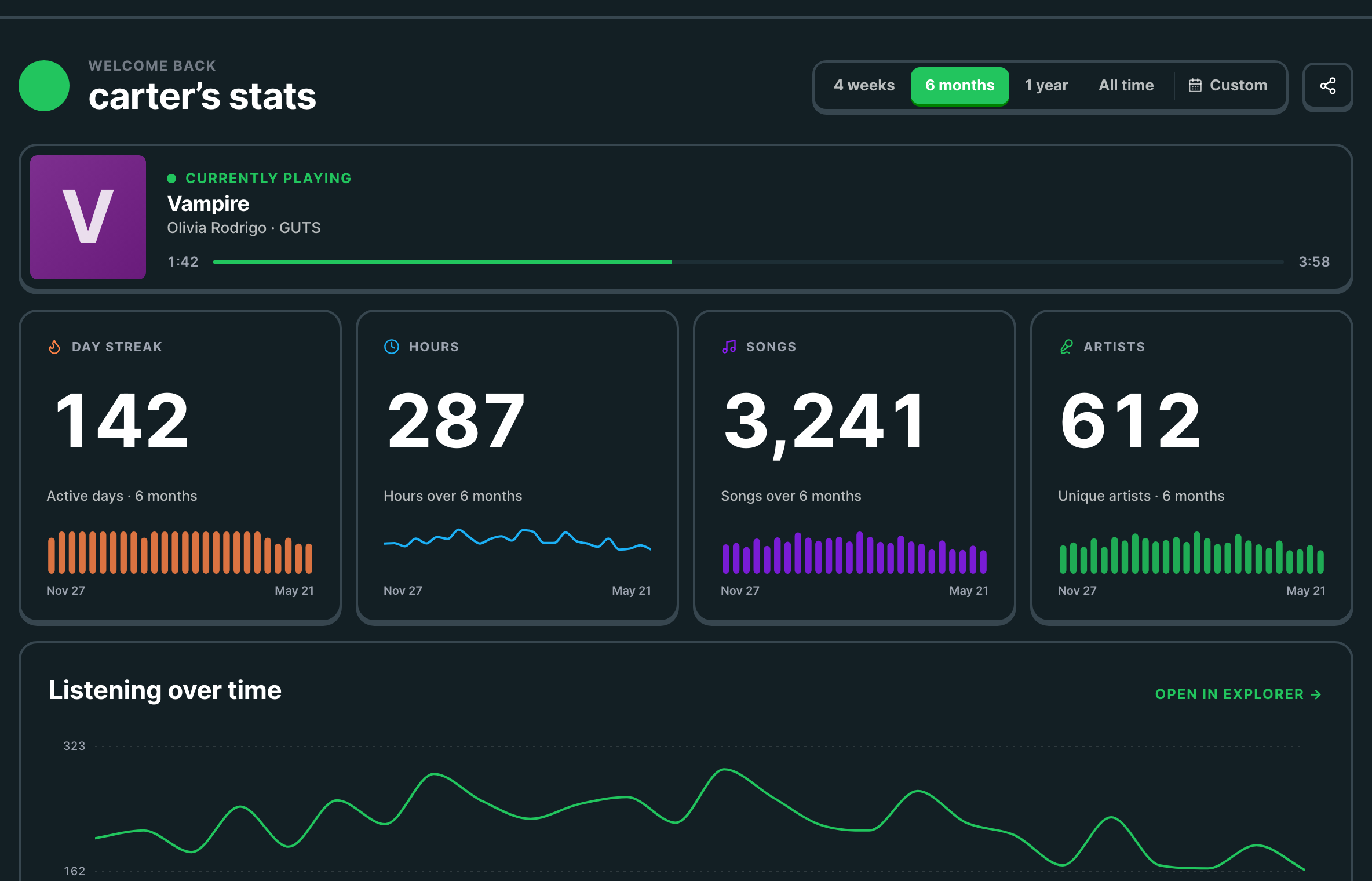
Discord shows what you're playing right now. Trackify keeps the rest: your top tracks and artists for free, and with Plus every play counted, with hours, streaks and your full history.