How to shuffle a playlist on Spotify
Spotify’s shuffle, the Fewer repeats and Standard settings, Smart Shuffle, and how to reorder a playlist itself so it plays in a truly random order.
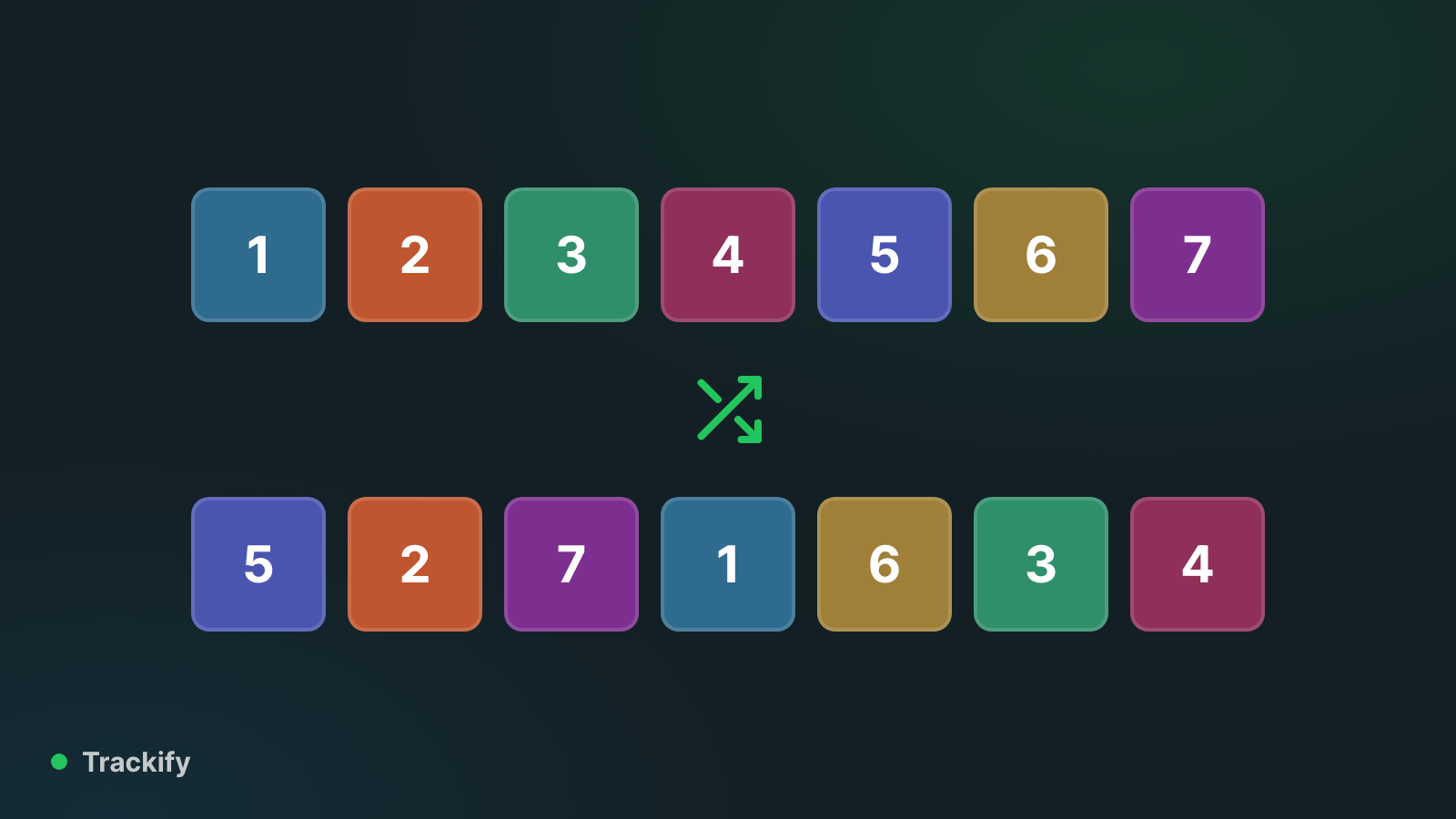
There are three ways to shuffle a Spotify playlist: Spotify's own shuffle, Smart Shuffle, and actually reordering the playlist so it's different for good. They behave differently, and which one you want depends on what annoys you about the other two.
Turn shuffle on
- Phone: open the playlist and tap the shuffle icon (two crossing arrows) next to the play button. It turns green when it's on.
- Desktop and web: click the shuffle icon in the playback bar at the bottom, to the left of the previous-track button.
Tap it again to go back to playing in order.
Spotify's shuffle isn't purely random, on purpose
A truly random order often plays the same artist twice in a row, which people hear as "broken", so Spotify has tuned its shuffle for years to feel more even. In November 2025 it changed again: Premium accounts now default to Fewer repeats, which looks at what you've heard recently and avoids bringing those songs back too soon.
If you'd rather have plain randomness, go to Settings → Playback and switch shuffle from Fewer repeats to Standard. The setting has been rolling out gradually, so update the app if you don't see it.
Smart Shuffle is something else
Smart Shuffle (the shuffle icon with a sparkle) shuffles your playlist and mixes in songs Spotify thinks fit, marked with the same sparkle. It's a Premium feature. If you keep hearing songs you never added, this is why: tap the shuffle icon until the sparkle goes away, or turn Smart Shuffle off in Settings → Playback.
Reorder the playlist itself
Shuffle only changes what plays next. The playlist stays in the order you added things, which is why the same songs seem to come up first every time. The alternative is to shuffle the playlist's actual order once and then play it straight through with shuffle off.
Trackify's Playlist Shuffler does that. It has two modes:
- Random: every order is equally likely.
- Artist spread: random, but with each artist's songs kept apart where possible.
It works on playlists you own or collaborate on once you've connected Spotify, and it can undo the last shuffle if you change your mind. It's free.
Common problems
- The same songs keep coming up. Switch between Fewer repeats and Standard, or reorder the playlist itself.
- Songs I didn't add are playing. That's Smart Shuffle, or autoplay once the playlist ends. Both can be turned off in Settings → Playback.
- Shuffle ignores some songs. Anything you added to the queue plays first, in the order you queued it. Clear the queue to get back to the shuffle.
- I can't turn shuffle off. Free accounts have had fewer playback controls on phones than Premium ones, and what's allowed has changed more than once. Update the app, and if the control still isn't there it's a limit of the free plan.
See your own numbers
Curious which songs you really play most, whatever order they come up in? Trackify shows your top tracks and artists for free, and with Plus every play counted, with hours, streaks and your full history.